
101 lines
2.8 KiB
Markdown
101 lines
2.8 KiB
Markdown
平时在Ubuntu系统上安装软件常用命令行在线安装或者下载deb格式文件通过命令安装:
|
||
|
||
```text
|
||
sudo dpkg -i *.deb(安装程序文件名)
|
||
```
|
||
|
||
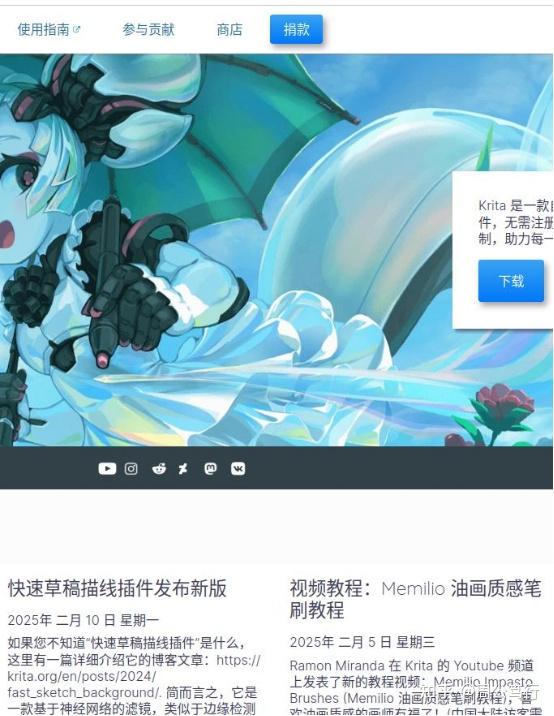
昨天想要尝试一下Krita软件,于是到官网([https://krita.org/zh-cn/](https://link.zhihu.com/?target=https%3A//krita.org/zh-cn/))查找安装文件。
|
||
|
||
|
||
|
||
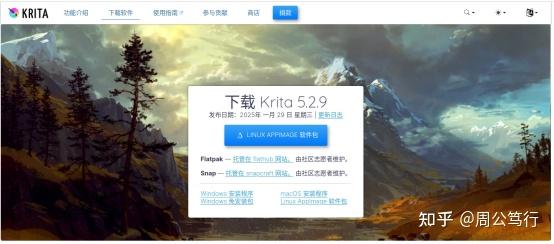
可是官网提供的Linux格式安装文件只有Appimage格式,没有deb格式。
|
||
|
||
|
||
|
||
下载之后直接运行会提示“没有安装处理Appimage文件的应用程序。是否搜索可大打开此文件的程序?”
|
||
|
||
有困难找[DeepSeek](https://zhida.zhihu.com/search?content_id=254883403&content_type=Article&match_order=1&q=DeepSeek&zhida_source=entity),得到一篇比较靠谱的指导,于是按图索骥操作:
|
||
|
||
一、安装依赖库
|
||
|
||
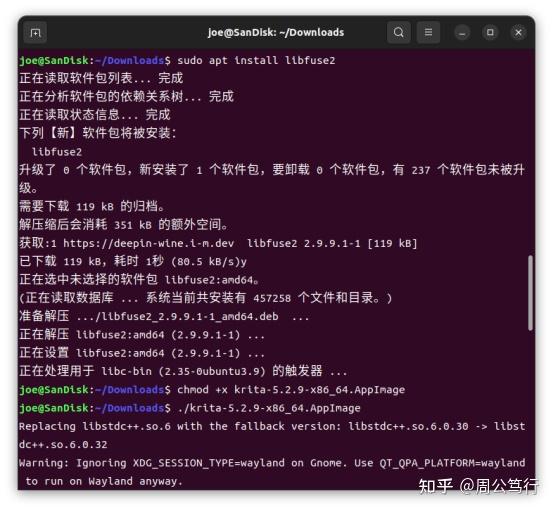
AppImage 运行需依赖 FUSE 库,未安装时可能报错 dlopen(): error loading libfuse.so.2。
|
||
执行以下命令安装:
|
||
|
||
```text
|
||
sudo apt update
|
||
sudo apt install libfuse2
|
||
```
|
||
|
||
二、赋予 AppImage 文件可执行权限
|
||
|
||
进入 AppImage 文件所在目录:
|
||
|
||
```text
|
||
cd /path/to/your/appimage
|
||
```
|
||
|
||
修改权限为可执行:
|
||
|
||
```text
|
||
chmod +x example.AppImage
|
||
(example.AppImage 需替换为实际文件名)
|
||
```
|
||
|
||
三、运行 AppImage
|
||
|
||
终端运行:
|
||
|
||
|
||
|
||
或在图形界面运行:
|
||
双击文件图标,勾选“允许运行”后启动 。
|
||
|
||
|
||
|
||
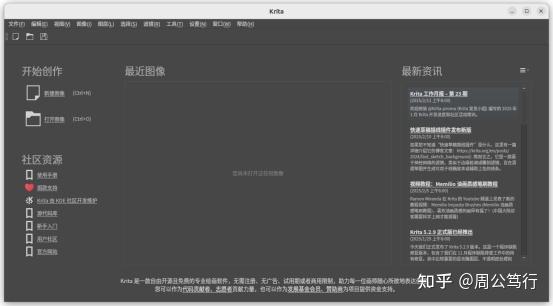
程序成功运行,于是以下步骤本人未实际操作,记录下来,仅供参考。
|
||
|
||
四、可选操作
|
||
|
||
集成到应用程序菜单
|
||
安装 appimagelauncher 工具,支持自动管理 AppImage 文件:
|
||
|
||
```text
|
||
sudo add-apt-repository ppa:appimagelauncher-team/stable
|
||
sudo apt update
|
||
sudo apt install appimagelauncher
|
||
```
|
||
|
||
安装后双击 AppImage 文件时,可选择“集成到系统菜单” 。
|
||
|
||
手动创建桌面快捷方式
|
||
|
||
创建 .desktop 文件:
|
||
|
||
nano ~/.local/share/applications/example.desktop
|
||
|
||
输入以下内容(替换路径和名称):
|
||
|
||
```text
|
||
[Desktop Entry]
|
||
Name=Example
|
||
Exec=/path/to/example.AppImage
|
||
Icon=/path/to/icon.png
|
||
Type=Application
|
||
Categories=Utility;
|
||
Terminal=false
|
||
```
|
||
|
||
保存后刷新菜单:
|
||
|
||
```text
|
||
update-desktop-database ~/.local/share/applications/
|
||
``` :ml-citation{ref="7,8" data="citationList"}
|
||
```
|
||
|
||
五、常见问题
|
||
|
||
安装后无法启动:检查 FUSE 库是否安装成功,或重新下载完整 AppImage 文件。
|
||
|
||
触控权限限制:若双击无反应,尝试通过终端运行并检查权限设置。
|
||
|
||
存储占用:AppImage 文件可直接删除以卸载软件,无需额外操作。 |